Save on your next trip with a Price Alert and discover why this flight price tracker could help you snag unbeatable deals without the stress. Plus, make holiday planning a breeze with our Saved function.
We all know the feeling: you find the perfect flight for your dream trip, only to realize the price has skyrocketed overnight. Flight prices can fluctuate daily, meaning you could be just one alert away from scoring a great deal. This is where Skyscanner's Price Alert and Saved features step in — helping you spot price drops, compare options, and book at the perfect moment.
Track prices and plan smarter with Skyscanner
Score great flight deals and organize your trips
Timing is crucial when it comes to booking flights and hotels, and being prepared can lead to securing better deals and enjoying a smoother holiday planning experience. Skyscanner’s ‘Price Alerts’ and ‘Saved’ features simplify booking trips, helping you to plan smarter, save money, and get organized.
‘Price Alerts’ help you stay updated when it comes to flight fare changes, while our Saved function enables you to save and compare your top travel picks, making the planning process easier and more efficient. Here’s how to make the most of them.

How to set up a Skyscanner ‘Price Alerts’ (step-by-step)
Get the best deals with ease
Seen a flight you like and happy to wait until your chosen flights reach the best possible price? ‘Price Alerts’ is the tool for you. Simply set up alerts on your desktop and we’ll alert you when the price changes.
Once you receive the alert that the price has dropped, book your flight to secure your budget-friendly seat and start looking forward to your trip.
Setting up an alert is easy — just follow these simple steps and get notified when flight prices drop.
Search for a route
Date and location
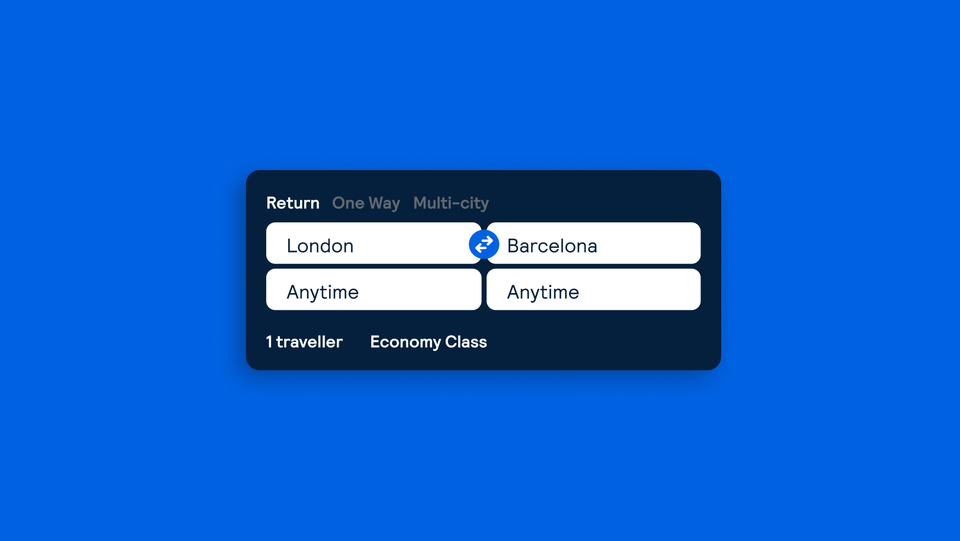
The first step in setting up Skyscanner’s ‘Price Alerts’ is to search for the route you’re interested in. You’ll then be provided with a list of options that match the search criteria you’ve used.
Click the ‘Price Alerts’ button
Create your alert
Once you’ve got your list of flights, click the ‘Get Price Alerts' button located at the top lefthand side of your screen. This will enable you to sign up for alerts relevant to your chosen date and destination.
Sign in
Log into your Skyscanner account
If you’re not already signed into your Skyscanner account, you’ll be prompted to log in when you hit the ‘Price Alerts’ button. This means we can send alerts to the email address you’ve signed up with.
Search for multiple flights
Find the cheapest option
To secure the best deal, set up ‘Price Alerts’ for other airports close to your chosen destination and try different dates. This way, you’ll get notified if there are even better deals on alternative routes.

Switch off your alerts
Ready to fly
Once you’ve been alerted to the best deal and booked your flight, you can switch off your ‘Price Alerts’ in your Skyscanner account. Then simply follow the same process when you’re ready to book your next flight.
How Skyscanner’s ‘Saved’ feature works
Compare flights and hotels with ease
It’s time to close those tabs and do away with the screenshots when planning your next trip. Seen a flight you like? Found the hotel of your dreams in your bucket list destination? Simply add them to ‘Saved’, your ultimate travel wish list. By creating this list, you can organise flight and hotel options by trip and see them together for easy comparison. You’ll also receive ‘Price Alerts’ for any flights you save to your lists.
Find your flights and hotel
Use Skyscanner’s innovative search functions
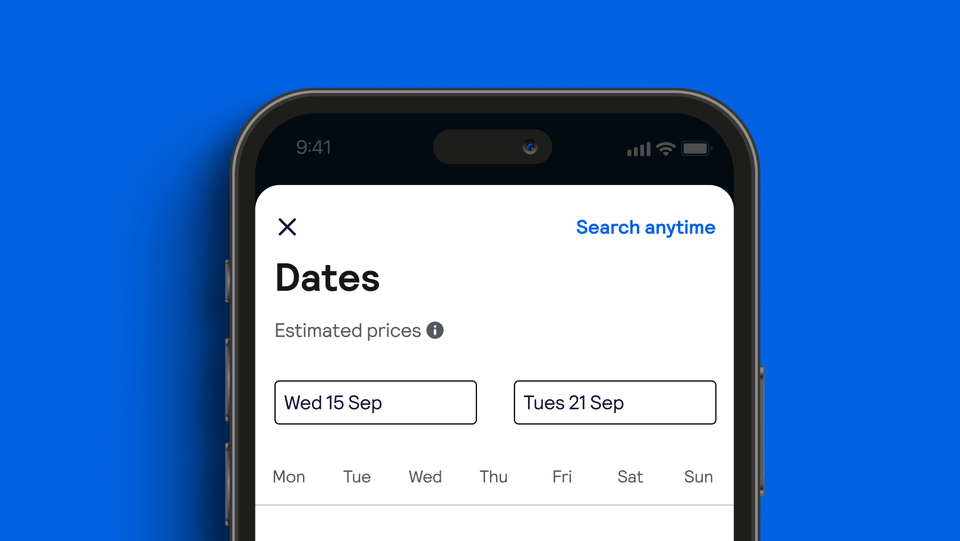
On Skyscanner’s mobile website or app, search for flights and hotels. You can search for a specific destination or opt for Everywhere if you’re undecided. If your travel date is flexible, use Calendar View to find the cheapest day to travel.
Save them for later
It’s time to use Skyscanner’s ‘Saved’ feature
Select the heart icon next to your favourite flight and hotel picks to save them for later. You’ll need to be logged into your Skyscanner account. Download the Skyscanner app to create separate lists for the different trips you’re planning.
Compare your options
Find the best deals
Go to ‘Saved’ to see your options in one place. This makes it easy to compare your options and will help you to make the right choice. Just look out for the heart icon to access your list.
Book your trip
Book your flight and hotel when you’re ready
All that’s left to do is book your trip! The flights and hotels you save won’t go anywhere. Plus, when you save a flight, we’ll send you ‘Price Alerts’ so you’ll be the first to know if the price changes.

Remove ‘Saved’ items
Once you’ve booked your trip
Once you've booked your saved flight or hotel, you can remove options from the list or delete the list completely. Remember, your ‘Saved’ items won’t go anywhere, so you can always keep them for inspiration.
Download the Skyscanner app to organize your trips and plan like a pro.
How the ‘Price Alerts’ and ‘Saved’ functions work FAQs
Now you know how useful Skyscanner’s ‘Price Alerts’ and ‘Saved’ functions are, sign up for an account and start using them today. For a seamless experience, download the Skyscanner app, so great flight and hotel deals are only a few taps away.
Thinking of traveling soon? Skyscanner can help you find the best flights, hotels and car rental deals for your next trip.